
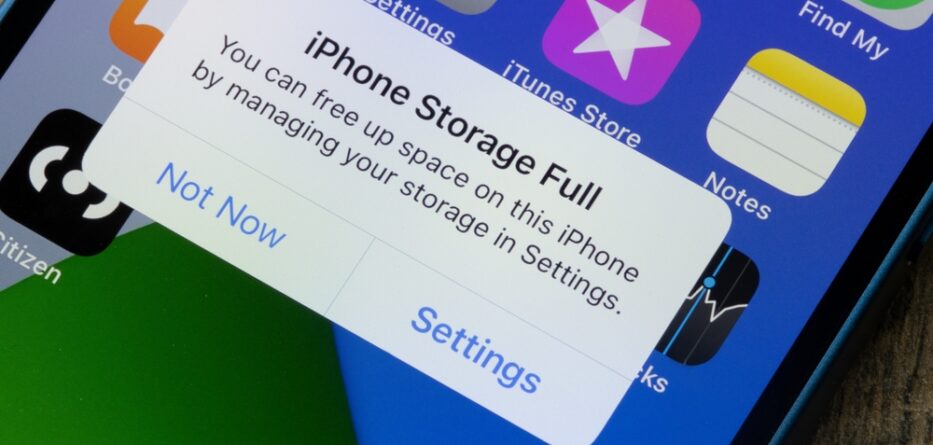
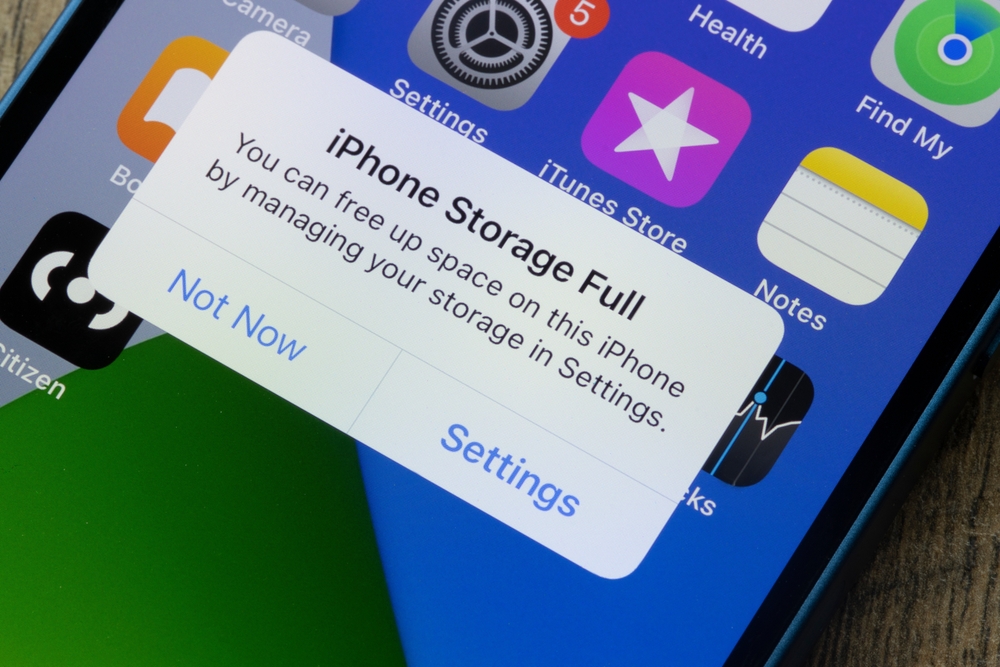
If your iPhone keeps flashing that dreaded “Storage Almost Full” warning, you’re not alone. Between photos, apps, messages, and random files you don’t even remember downloading, storage fills up fast. The good news? You can clear up a surprising amount of space without deleting your important data. No painful goodbyes to memories, no risky factory resets—just smart cleanup.
Let’s walk through simple, safe, and user-friendly ways to reclaim your iPhone storage and make it feel fast and fresh again.
Start With a Quick Storage Check
Before deleting anything, it helps to know what’s actually taking up space.
Go to Settings → General → iPhone Storage.
Here, your iPhone shows a color-coded breakdown of storage usage and even suggests actions like offloading unused apps or reviewing large files.
This step alone can be eye-opening—you may discover a single app or media category hogging gigabytes.
Clean Photos Without Losing Memories
Photos and videos are usually the biggest storage thieves, but you don’t have to delete your memories to save space.
Turn On iCloud Photo Optimization
If you use iCloud:
-
Go to Settings → Photos
-
Enable Optimize iPhone Storage
This keeps full-resolution photos in iCloud while smaller versions stay on your phone. You still see all your photos, but they take up way less space.
Delete Duplicates and Blurry Shots
Your iPhone can now help with this:
-
Open Photos → Albums → Duplicates
Review and merge duplicates instead of deleting everything manually. Also, take a few minutes to remove screenshots, accidental photos, and blurry videos you’ll never revisit.
Offload Apps You Don’t Use (Without Losing Data)
Apps are sneaky—they hold onto data even when unused.
Use App Offloading
-
Go to Settings → General → iPhone Storage
-
Enable Offload Unused Apps
This removes the app itself but keeps all documents and data. When you reinstall it later, everything comes right back like nothing happened.
Perfect for games, travel apps, or shopping apps you use once in a while.
Tame Messages and Attachments
Text messages themselves don’t take much space—but photos, videos, and voice notes inside them definitely do.
Review Large Message Attachments
-
Go to Settings → General → iPhone Storage → Messages
-
Check categories like Photos, Videos, GIFs, and Stickers
Delete large attachments while keeping the actual conversations intact.
Set Messages to Auto-Delete Old Content
You can still keep recent messages:
-
Go to Settings → Messages → Keep Messages
-
Choose 1 Year or 30 Days
This clears out ancient attachments you probably forgot existed.
Clear Safari and App Caches Safely
Cached files help apps load faster, but over time they pile up.
Clear Safari Data
-
Go to Settings → Safari
-
Tap Clear History and Website Data
This won’t delete saved passwords or bookmarks if you use iCloud Keychain.
Reinstall Heavy Apps
Some apps (like social media or streaming apps) build huge caches. If one looks suspiciously large:
-
Delete the app
-
Reinstall it from the App Store
Your login info and data usually sync back automatically.
Manage Downloads and Offline Content
Offline content is helpful—until you forget about it.
Remove Old Downloads
Check apps like:
-
Spotify
-
Netflix
-
YouTube
-
Apple Podcasts
Delete shows, playlists, or episodes you’ve already watched or listened to. You can always download them again later.
Use Cloud Storage Smartly
Cloud storage isn’t just backup—it’s a powerful storage-saving tool.
-
Move important documents to iCloud Drive, Google Drive, or Dropbox
-
Use cloud note apps instead of storing large files locally
-
Make sure iCloud Backup is turned on for safety before big cleanups
This way, your important data stays accessible without clogging your device.
Reset Settings, Not Your Data
If storage issues come with glitches or lag:
-
Go to Settings → General → Transfer or Reset iPhone
-
Tap Reset → Reset All Settings
This won’t delete apps or data—it only resets system preferences like Wi-Fi and notifications. Sometimes, this alone improves performance and storage behavior.
Make Storage Cleanup a Habit
The real secret to stress-free storage? Small, regular cleanups.
-
Review storage once a month
-
Delete screenshots weekly
-
Offload apps you haven’t opened in months
-
Keep cloud syncing enabled
A few minutes here and there can save you from major cleanups later.
Running out of iPhone storage doesn’t mean you need to sacrifice your important data or memories. With smart settings, gentle cleanups, and a little cloud help, you can free up space safely and keep your phone running smoothly.
Your iPhone should feel like a helpful companion—not a storage stress machine. A quick cleanup today can make it feel brand new again


-
 The AI race has reached another major milestone. Google’s Gemini app has passed 1 billion monthly active users, making...
 -
Nothing appears ready to take a much bigger step in the smartphone market. The company is reportedly considering launching...
-
Apple has introduced a new hardware leasing initiative in the United States, expanding its approach to how customers purchase...
-
Microsoft and 3M have announced a partnership that could change the way AI data centers operate. The collaboration focuses...
-
The tech world is facing another major supply problem, but this time the pressure is coming from artificial intelligence....
-
Google has just announced a major update to its smart home lineup with the launch of the new Google...
-
Apple’s latest announcements have captured the attention of businesses around the world. The introduction of Apple Intelligence, paired with...
-
Huawei has officially launched its latest initiative, the Alliance on Healthcare & Education AI Digitalization 2.0, known as the...
-
Google kicked off its annual I/O developer conference in Mountain View, California, with a major transformation of its product...
-
Artificial intelligence is advancing faster than ever, and with that speed comes growing concern about safety, misuse, and global...
-
Artificial intelligence is growing faster than ever, and the technology behind it is becoming just as important as the...
-
On April 29, Tesla, Inc. shared a software update that quietly reset expectations for many drivers. The company confirmed...